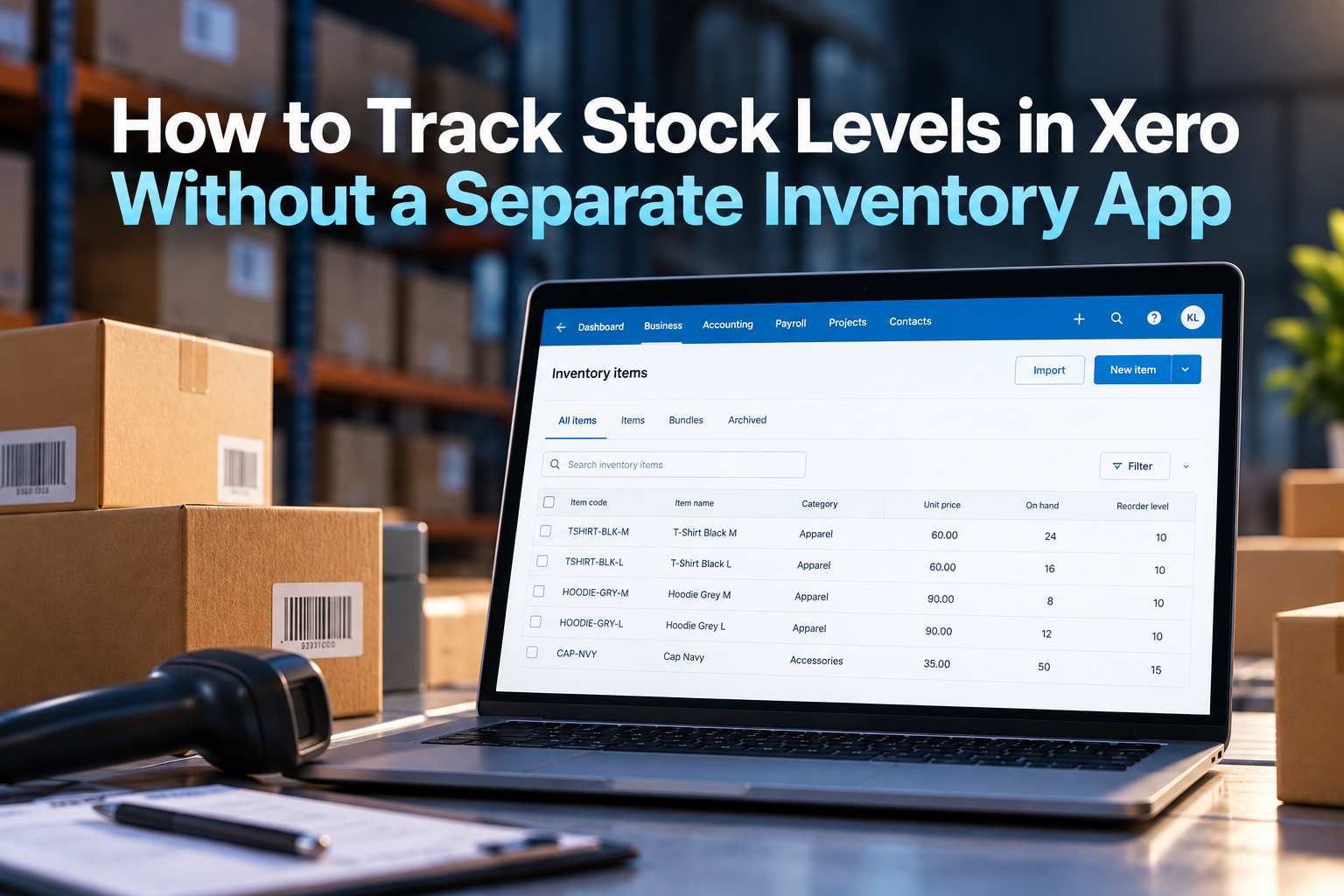

Yes, you can track stock levels in Xero without buying a separate inventory app. Xero has a built-in feature called tracked inventory that counts your stock, values it on the Balance Sheet and records cost of goods sold (COGS) every time you invoice a sale.
This guide is for Singapore SMEs comparing accounting software who want to know how far Xero’s own inventory tools can go. We cover how tracked inventory works, how to set it up, a worked example in SGD, and the clear signs that your business has outgrown it.
Can Xero Track Stock Levels on Its Own?
Xero can track quantity on hand and stock value for each product you mark as tracked. Stock goes up when you approve a supplier bill and goes down when you approve a customer invoice. Xero values stock using the weighted average cost method and posts COGS automatically.
It works best for businesses that:
- Buy and sell finished goods, rather than manufacturing from raw materials
- Sell mainly through invoices sent to customers, such as wholesalers and B2B distributors
- Keep stock in one location, or are happy to view all stock as a single total
- Have a product list well under a few thousand SKUs
If that describes you, Xero on its own can be enough. If not, the later sections explain where the limits sit.
Tracked vs Untracked Items in Xero
Every product in Xero’s Products and services list is either tracked or untracked. Choosing correctly is the first decision that affects your reports.
| Untracked item | Tracked item | |
|---|---|---|
| What it does | Saves a code, description and price to speed up invoicing | Counts quantity on hand and holds stock value |
| Balance Sheet | No stock asset recorded | Stock recorded as an inventory asset |
| When you buy | Cost goes straight to an expense or purchases account | Cost goes to the inventory asset account |
| When you sell | Only the sale is recorded | Sale is recorded and COGS is posted at average cost |
| Best for | Services, consumables, low-value items | Physical goods you resell and want to count |
Tracked inventory is also different from Xero’s tracking categories, which are used to split reports by department, branch or project. The two features are unrelated, and mixing them up is a common source of confusion during setup.
How to Set Up Tracked Inventory in Xero: Step by Step
The setup below reflects Xero’s current Products and services screen. Menu names can shift slightly between updates, so use Xero Central as the final reference.
Step 1: Check Your Chart of Accounts
Before creating items, make sure these accounts exist and are set up correctly:
- Inventory (current asset): holds the value of unsold stock
- Cost of Goods Sold (direct costs): receives the cost of each unit sold
- Inventory Adjustments or a similar account: captures stocktake differences, write-offs and damaged goods
- Sales (revenue): records the selling price
Agree these with your accountant first. Changing account mappings after months of transactions is painful.
Step 2: Clean Up Your Product List and SKU Codes
Decide on a naming convention before you create or import anything. For example, decide whether size and colour sit in the item code, the description, or both. Duplicate or inconsistent codes lead to stock being split across two items that are really the same product.
Step 3: Create Your Tracked Items
- Go to Business > Products and services and select New item.
- Enter the item code, name, sale price and purchase price.
- Tick the option to track inventory for this item.
- Select the Inventory asset account, the Cost of Goods Sold account and the Sales account.
- Set the correct GST tax rates for purchases and sales, then save.
For larger lists, import items using Xero’s CSV template instead of creating them one by one.
Step 4: Enter Opening Balances
Do a physical stocktake, then enter the quantity and unit cost for each item as at your start date. Xero lets you add opening balances with an inventory adjustment for a small number of items, or import them. Xero’s documentation states that opening balances can be imported for up to 4,000 tracked items.
A few rules to keep in mind:
- If you skip an opening balance, Xero starts the item at zero
- Negative opening balances are not allowed
- Plan your cutover at a month end so the numbers line up cleanly with your accounts
How Stock Moves Through Xero Day to Day
Buying Stock
Raise a purchase order if you use them, then convert it to a bill when the supplier invoice arrives. Once the bill is approved, Xero increases quantity on hand and recalculates the average cost. Always count what physically arrived before approving, because Xero cannot tell the difference between a full delivery and a short shipment.
Selling Stock
When you approve a customer invoice with a tracked item, Xero reduces quantity on hand and posts COGS at the current average cost. You do not need to do anything extra.
Worked Example: How Average Cost Works (SGD)
A Singapore coffee wholesaler buys and sells one product. All amounts exclude GST.
| Transaction | Qty | Unit cost / price | Stock value after | Avg cost after |
|---|---|---|---|---|
| Opening stock | 100 | S$12.00 | S$1,200.00 | S$12.00 |
| Bill: buys 50 more | +50 | S$13.50 | S$1,875.00 | S$12.50 |
| Invoice: sells 40 | -40 | Sells at S$22.00 | S$1,375.00 | S$12.50 |
On the sale, Xero records revenue of S$880.00 and COGS of S$500.00 (40 units x S$12.50), giving a gross profit of S$380.00. If the business is GST-registered, output tax of S$79.20 (9%) is added to the invoice total and does not form part of revenue. The remaining 110 units sit on the Balance Sheet at S$1,375.00.
Stocktakes and Adjustments
Physical stock will drift from Xero over time because of damage, loss, samples or counting errors. After each stocktake, use Adjust quantity on the item (or select several items at once) to increase or decrease quantity. Xero also offers a revaluation option that changes the average cost without changing quantity.
Adjustments cannot be edited or deleted once posted. To fix a mistake, you post a second adjustment that reverses it, so add a clear reference note every time.
Which Xero Reports Show Your Stock Levels?
Two reports cover most day-to-day needs:
- Inventory Item List: current quantity on hand, average cost and total value for each item
- Inventory Item Summary: movement, sales and profit by item over a date range
A simple monthly habit is to check that the total on the Inventory Item List matches the Inventory account on your Balance Sheet. If they differ, something has been posted to the inventory account directly instead of through a tracked item.
Singapore Considerations
- GST: If you are GST-registered, stock is valued net of GST because input tax is claimed through your GST return. The current standard rate is 9%.
- Record keeping: IRAS generally requires businesses to keep records for at least 5 years. Xero’s transaction history and adjustment notes help, but keep your signed stocktake sheets too.
- Year-end stock: Your closing stock figure feeds into your financial statements and tax computation, so a proper year-end stocktake and adjustment in Xero matters for accurate Form C-S or Form C filing.
- Accounting standards: Singapore’s financial reporting standards accept weighted average cost as a valuation method. Discuss write-downs for slow-moving or damaged stock with your accountant.
Common Mistakes When Tracking Inventory in Xero
- Posting stock purchases to an expense account. Using a bill line without the tracked item code means quantity never increases.
- Using untracked codes for items you actually stock. COGS and stock value will both be wrong, with no warning from Xero.
- Approving bills before goods are checked. Short deliveries then show as stock you do not have.
- Skipping regular stocktakes. Small errors compound. Quarterly counts are a reasonable minimum for most SMEs.
- Converting items mid-year without a cutover plan. Xero will not backfill history when you switch an item from untracked to tracked.
What Xero's Built-In Inventory Cannot Do
Xero’s inventory is designed for accounting accuracy, not warehouse operations. These are the main gaps SMEs run into:
| Need | Xero tracked inventory |
|---|---|
| Multiple warehouses or outlets | Not supported. All stock is treated as one location. |
| Bills of materials, assembly or manufacturing | Not supported. Finished goods only. |
| Batch, lot and expiry date tracking | Not supported |
| Serial number tracking | Not supported |
| Automatic reorder points or low-stock alerts | Not supported natively |
| Barcode scanning, pick and pack | Not supported |
| Periodic inventory (update only at month or year end) | Not suitable. Xero uses perpetual tracking. |
| Orders and payments via eCommerce channels | Xero advises tracked inventory is not suitable here |
| Very large catalogues | Xero suggests an app for more than 4,000 tracked items |
Xero also sells an add-on called Xero Inventory Plus that adds features such as multi-location stock. At the time of writing it is mainly offered in the US, so check with Xero or your Xero partner whether it is available for Singapore organisations before planning around it.
When Should You Upgrade to a Dedicated Inventory App?
Stay with Xero’s tracked inventory while it covers your operations. Consider an inventory app from the Xero App Store when two or more of these apply:
- You hold stock in more than one location, such as a warehouse plus retail outlets.
- You sell through Shopify, Lazada, Shopee or other online channels and need stock to sync across them.
- You assemble, bundle or manufacture products.
- You sell food, cosmetics, health supplements or other goods where batch and expiry tracking matter.
- Your team spends hours each week reconciling spreadsheets against Xero.
- Your product list is approaching the thousands of SKUs.
Apps such as Unleashed, Cin7 and Katana connect to Xero and push accounting entries back into it, so Xero remains your general ledger. One important rule: once you adopt an inventory app, stop using Xero’s tracked inventory for the same items. Running both creates double counting. Xero itself recommends against using a third-party inventory app alongside its own tracked inventory.
Choosing Accounting Software With Stock in Mind
If you are still deciding on accounting software, think about inventory before you sign up. Map out how many products you carry, how many locations you stock from and which sales channels you use, then check that the plan you choose can handle that volume.
Plan limits matter for trading businesses. Xero’s Starter plan caps you at 20 invoices and 5 bills a month, which most businesses that buy and sell stock regularly will reach quickly. The Standard plan removes those limits, and Premium adds multi-currency, which is useful if you pay overseas suppliers in USD or RMB. Check Xero’s Singapore website for current plan details before you decide.
Get Your Xero Inventory Set Up Right the First Time
Most inventory problems in Xero trace back to setup: wrong account mappings, messy item codes or opening balances entered without a proper count. Fixing them months later takes far longer than getting them right on day one.
361DC helps Singapore SMEs set up Xero, configure tracked inventory, clean up product lists and train teams to run stocktakes and adjustments correctly. If you are unsure whether Xero alone will cover your stock needs, we can review your operations and tell you honestly whether an inventory app is worth it yet.
Speak to our team at 6515 7906 or email enquiry@361dc.com.
Frequently asked questions
Yes. Xero includes tracked inventory, which records quantity on hand, stock value and cost of goods sold. It is suited to simple, single-location trading businesses rather than complex warehouse operations.
Xero uses the weighted average cost method. Each new purchase recalculates the average cost, and that average is used for COGS when you sell.
Xero states that opening balances can be imported for up to 4,000 tracked items and suggests an inventory app if you need to track more than that.
Not with standard tracked inventory. All stock is treated as one pool. Businesses with multiple warehouses or outlets usually need a connected inventory app.
Yes, but Xero does not rebuild past history. Do a stocktake, enter an opening quantity and cost, and time the switch at a month end.
Xero shows quantity on hand when you add a tracked item to a transaction, but it does not have built-in reorder points or automated low-stock alerts. Many SMEs handle this by reviewing the Inventory Item List weekly.
Xero works well as the accounting system for online sellers, but Xero advises that its tracked inventory is not suitable when orders and payments come through eCommerce channels. Online stores usually pair Xero with a connected inventory or order management app.