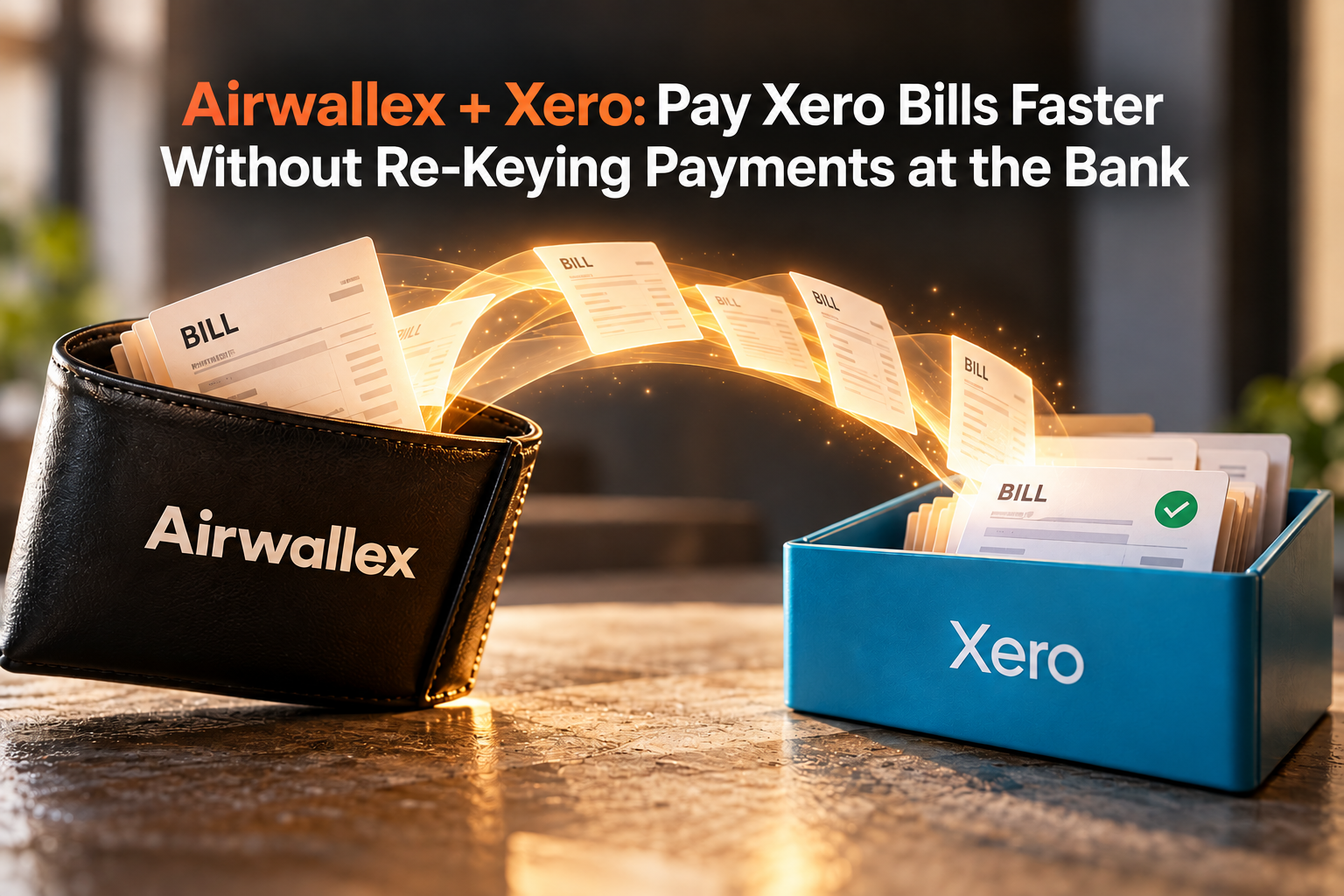

With Airwallex connected to Xero, bills already created in Xero can be pulled into Airwallex for payment. Your team reviews, approves and pays them there, and the paid status goes back to Xero. Nobody has to log into a bank portal and build each payment from scratch.
This article explains how that compares with the usual bank-plus-Xero routine, what else the connection improves in accounting and approvals, and what to check before you set it up.
Who this is for: business owners, finance teams and Xero users in Singapore who pay several suppliers each month, especially those paying in more than one currency.
The Usual Way: Paying Xero Bills Through a Bank Portal
In a standard Singapore setup, Xero records the bill and the bank makes the payment. The two do not exchange payment instructions. This means that bills payment would need to be created one by one into the bank because Xero does not produce a specific bank payment file for Singapore. Some businesses add a third-party app to generate that file, which adds another tool to buy and manage.
The typical routine looks like this:
- Enter or receive the bill in Xero and have it approved.
- Log into the bank portal.
- Create each payment from scratch: supplier name, account number, amount and reference.
- Get the payment approved in the bank.
- Return to Xero to record the payment and reconcile it against the bank feed.
Each step where someone retypes information is a chance for a wrong amount, a wrong account or a missed bill. It also means the same bill is handled twice: once in Xero and once at the bank.
The Airwallex Way: Pull the Bill, Review, Pay
Airwallex Bill Pay can import bills awaiting payment from Xero. The bill arrives with its details, so your team works from the bill itself rather than a blank payment form. You can also create bills directly in Airwallex and sync approved ones to Xero. When a bill is paid through the workflow, its status updates in Xero.
| Step | Conventional bank + Xero | Airwallex + Xero |
|---|---|---|
| Start | Bill is approved in Xero | Bill is approved in Xero |
| Prepare payment | Log into the bank and create the payment from scratch | Import the bill from Xero into Airwallex Bill Pay |
| Supplier details | Typed or selected in the bank portal | Saved as a vendor in Airwallex; set up once for repeat suppliers |
| Approval | Bank approval, if configured | Multi-layer approval flow in Airwallex |
| Payment | Released from the bank | Released from Airwallex |
| Back to Xero | Staff record and match the payment | Paid status syncs to Xero; wallet transactions reach Xero through the Bank Feed |
The point is not that the bank payment disappears. It is that your team stops preparing it by hand.
A simple example
Illustrative: A Singapore trading company approves 50 supplier bills in Xero before month end. Previously, an accounts executive spent time re-keying each payee and amount into the bank portal. With Airwallex, the same bills are imported, the approvers review them in one queue, and the paid status returns to Xero. The executive spends the time checking exceptions instead of typing.
Approvals Before the Money Leaves
Xero has a basic approval step. Bills move from Draft to Awaiting Approval to Awaiting Payment, and only users with approval permission can approve them. It does not natively route by amount or require more than one approver.
Airwallex Bill Pay adds that layer at the payment stage. You can build multi-layer approval flows with approvers set as a user’s manager, a role or named users. You can also set approval flows for vendor changes, which matters because changed bank details are a common fraud route. Approvers receive reminders when bills wait for approval or payment.
The thresholds below are an example only. Set yours based on your own risk and structure.
| Bill amount (SGD) | First approver | Second approver |
|---|---|---|
| Up to 2,000 | Department head | None |
| 2,001 to 20,000 | Department head | Finance manager |
| Above 20,000 | Finance manager | Director |
| Any change to vendor bank details | Finance manager | Director |
Decide where approval happens. If bills are approved in both Xero and Airwallex, staff will not know which approval counts and bills will stall.
Cleaner Books Without the Extra Work
Airwallex offers separate connections to Xero, so you turn on only what you need.
| Connection | What it does | Best for |
|---|---|---|
| Bank Feed | Syncs Airwallex wallet transactions into Xero hourly, one Xero bank account per currency | Anyone holding or moving foreign currency |
| Invoice Payment | Adds an Airwallex checkout option to Xero invoices; payments post to the invoice | Businesses that want customers to pay online from the invoice |
| Payments Feed | Shows itemised online payments, refunds and fees instead of one pooled payout | Businesses collecting many online payments |
| Expenses and Bills | Imports your chart of accounts, tracking categories, tax rates and contacts; syncs card expenses and bills with receipts | Teams with company cards or regular supplier payments |
Expenses and Bills is an add-on to the Bank Feed, so set up the Bank Feed first. With it, cardholders and bill users can code their own items and attach receipts, and these travel with the transaction to Xero. Card expenses can sync as Spend Money transactions or as Bills. Pick one approach with your accountant before you start, as it changes how you reconcile.
For compliance, IRAS requires businesses to keep accounting records for at least 5 years. Receipts attached to the Xero transaction make it easier to support GST or an audit. For foreign currency, confirm with your accountant which exchange rate basis you use for GST.
Getting Paid Is Easier Too
With the Invoice Payment connection, customers get a checkout option on the Xero invoice. A successful payment is posted to the invoice and a receipt is emailed to the payer. Available methods depend on your setup and currency. Add the Payments Feed to see individual payments and fees. Note that Payments Feed items sync on settlement, so a payment will not appear in Xero the moment the customer pays.
Xero Alone vs Xero with Airwallex
Many Singapore SMEs run well on Xero with a local bank feed. The table shows where Airwallex changes the workflow. Your result depends on your bank, Xero plan and current process.
| Area | Xero with a typical bank feed | Xero with Airwallex |
|---|---|---|
| Preparing supplier payments | Create each payment from scratch in the bank portal | Bills imported from Xero into Bill Pay |
| Approvals | Basic single-step approval in Xero; approval rules in the bank | Multi-layer approvals by manager, role or user before payment |
| Payment status in Xero | Staff record and match the payment | Paid status syncs back to Xero |
| Customer payments | Bank transfer or another service you set up; match by reference | Pay from the invoice; payment posts to the invoice |
| Foreign currency | Depends on the bank account | Each currency wallet maps to a Xero bank account |
| Card expenses | Receipts often chased by email or chat | Receipts and coding attached by the cardholder and synced |
Airwallex does not replace Xero. Xero stays the ledger. Airwallex handles payment preparation, approval and money movement.
Common Mistakes to Avoid
- Creating bills in both systems. Choose one place to create bills, or you will get duplicates.
- Connecting the Bank Feed only and expecting invoice matching and fee detail. Those need the Invoice Payment and Payments Feed connections.
- Linking the wrong entity. Confirm which Airwallex entity connects to which Xero organisation.
- Ignoring the default contact. If a merchant name does not match a Xero contact, the expense goes to a default “Airwallex Expenses” contact. Importing contacts reduces this.
- Skipping failed syncs. Items can show “Sync failed”. Assign someone to check weekly.
- Going live without a test. Run one sample invoice and one sample bill first.
Setup Checklist
- Map each Airwallex entity to the correct Xero organisation.
- Turn on only the connections you need.
- Map currency wallets to Xero bank accounts.
- Import chart of accounts, tracking categories, tax rates and contacts.
- Agree where bills are created, approved and paid.
- Test one bill end to end: import from Xero, approve, pay, check the status in Xero.
- Test one invoice end to end: payment, settlement and fees.
- Assign a person to review unmatched items, refunds, fees and failed syncs.
Is This Right for Your Business?
It suits SMEs that pay many suppliers, deal in several currencies, issue company cards or want a formal approval step before payment. If you pay a handful of suppliers each month in SGD with one approver, your current bank routine may be enough but Airwallex can still help to streamline your process.
Talk to 361DC
361 Degree Consultancy Pte Ltd is both a Xero and an Airwallex partner. We train teams on Xero and advise on how finance operations should be set up around it. If you want to see whether Airwallex fits your payment and approval workflow, we can walk through your bills, currencies and approvers before you switch anything on.
Contact us at 6515 7906 or enquiry@361dc.com.
Frequently asked questions
Yes. Bills awaiting payment in Xero can be imported into Airwallex Bill Pay.
No, not for bills imported from Xero. You review the imported bill, approve and pay.
Yes. When a bill is paid through the workflow, its status updates in Xero.
Yes. The connection does not stop you from using your existing bank but keep one process per bill to avoid double payment.
Yes. Airwallex supports multi-layer approval flows with approvers by manager, role or amount.
Bank Feed updates approximately every 2 hours. Payments transactions sync on settlement.
Yes. The bank feed streamlines reconciliation rather than completing it for you. Review payments, fees and exceptions regularly.